
Your cursor is sitting in the alt text field, the image is a stock photo of a wizard holding a glowing staff, and the publish button is right there. You could type "wizard." You could type the filename. You could write four sentences about the staff, the robes and the suspiciously photogenic owl. You type something short and move on, because it's one field and the page needs to ship.
Repeat that moment across a whole site and you get the experience many screen reader users describe: page after page of "image, image, image," or a navigation link announced as "hero-final-v3.jpg." The mechanics of how to add alt text to images are simple. The judgement behind it is where people stall, and where a few confident decisions save a lot of pointless writing.
Treat each image as a spell component. A working spell takes the right components, not every component in the cupboard, and some images need no incantation at all. Decide the role, then write only what that role demands.
Table of Contents
- Decide What Each Image Is Doing First
- Adding Alt Text in HTML and Your CMS
- How to Write, Place and Check Alt Text
- Alt Text Mistakes That Quietly Break Pages
- Handling Logos, Repeated Cards and Translations
Decide What Each Image Is Doing First
Load a random marketing page with a screen reader running and the failure announces itself within seconds. "Image. Image. Image." Or worse, "hero-wizard-dragon-02-final.jpg." One writer skipped the field, another pasted a filename into it, and neither mistake is visible to anyone browsing with their eyes.
Alt text describes what an image does on the page, not everything visible inside it. The W3C image decision tree turns that principle into a short set of branching questions: photographs and simple graphics get a brief description of their meaning, decorative imagery gets an empty alt value, and a functional image inside a link or button names the destination or action rather than the pixels. Images containing words need one extra check, because the same wording sitting in real text nearby usually makes the picture decorative.
Five rows cover almost every image you'll meet.
| Image role | Ask yourself | Alt text to write | Example |
|---|---|---|---|
| Informative photo | Does it add meaning the text does not give? | Key subject and context | Three engineers reviewing a project plan in an office |
| Functional icon or linked image | Does clicking it do something? | Destination or action | Search |
| Decorative image | Would the page lose anything if it vanished? | Empty alt value | Ornamental divider |
| Image with same text nearby | Does the caption already say it? | Empty alt value | Product photo beside its printed name |
| Complex chart or diagram | Does it hold data readers need? | Short identifier, data in adjacent text | Monthly sales chart, with figures in a table below |
Notice what the table never asks. How many megapixels, which lens, what colour the sky was. Those are photography questions. This table asks one thing only: what is this image doing here?
The removal test: if deleting the image would cost the reader information, describe it. If deleting it costs nothing, give it an empty value and let it decorate in peace.
The rule underneath all five rows is unforgiving. Decide the role first, then write. An editor who starts with the wording ends up describing a swirl of pixie dust that every screen reader user then has to sit through on the way to the actual content.
Adding Alt Text in HTML and Your CMS
A screen reader never sees the photograph. It hears one attribute, the way a spell names a component so the caster knows what they are holding. A good name is short. A bad one is a camera filename the listener has to sit through.
Every field you click later writes that same HTML attribute, so start with the markup. An informative photograph carries a sentence: <img src="team.jpg" alt="Three engineers reviewing a project plan in an office">. A decorative divider keeps the attribute and empties it: <img src="divider.svg" alt="">. Delete the attribute instead of emptying it and the software reading the page may announce the filename or guess at the contents, which is worse than silence.
That empty string is a role decision, not a box you forgot. Fewer, better values beat a sentence in every field. If the picture only decorates, alt="" tells the reader to skip it. If the picture informs, or if it is a control, the attribute holds the job in a few words. A linked logo cannot be left blank, because image-based controls need a name people can hear.
Accessibility guidelines have required text alternatives for non-text content for a long time. The same expectation covers photographs and controls.
Many editors never touch markup. WordPress puts an Alt Text box in the media library detail panel. Page builders tuck the same field into an image settings sidebar. Online stores ask for it when you upload a product photo. Word processors and design tools often offer a mark as decorative checkbox instead, which flags the image so screen readers skip it.
| Platform | Where the alt field is | Blank-field risk |
|---|---|---|
| WordPress media library | Alt Text box in the media detail panel | The Alt Text field starts blank, so an image uploaded and published without editing ships with no description |
| Page builder | Image settings sidebar | The field hides behind a settings tab many users never open, so images publish with no alt at all |
| Online store product photo | Alt field offered on upload | Some editors fill the filename |
| Word processor or design editor | Decorative checkbox | Ticked images are skipped by screen readers |
| Raw HTML | alt attribute on the img tag | Missing attribute can make software announce the filename |
Read down that last column before you publish. A missing attribute and a filename dropped into the field both get announced as junk. An empty attribute announces nothing, which is the right result for ornament. The decorative checkbox is the same choice under another label: skip this image.
Background images set in CSS count as decorative by default and need no alt text, which is one reason designers push purely ornamental art into stylesheets. Some do the opposite and bake meaningful text into a background, where no attribute can rescue it. If those words matter, they belong in HTML, where a screen reader can say them.
Before publishing, open the page source, search for img, and check that each tag has an alt attribute that is present, short and correct. An empty attribute still counts as present. A tag with no alt attribute does not. If you are moving from DIY builders to WordPress, the media library is where that Alt Text box lives. Alt text is one field among many, and an automated SEO tool can keep titles, descriptions and links in order while you work through the image library.
How to Write, Place and Check Alt Text
A stone tower photo can be announced three different ways, and only one of them is right for the page. On a course page it names the place. Inside a "Book a tour" link it names the action. Beside a paragraph that already tells the tower's story, a screen reader should skip the picture. Alt text is a role decision for that one image, not a sentence you owe every file. Fewer, sharper values beat a filled field on each one.
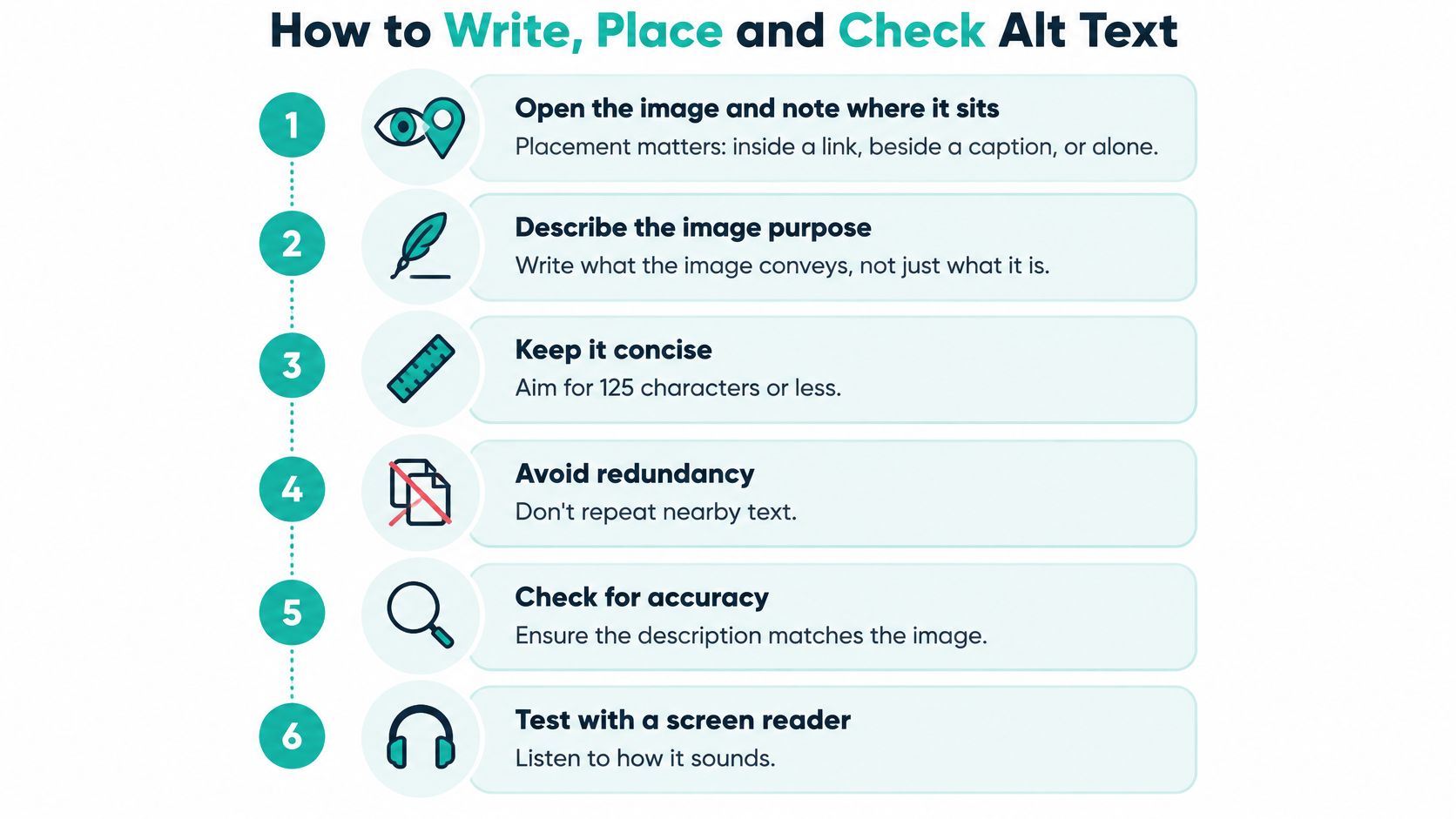
Run the same seven steps and the work turns into a rhythm. Each step has a slip that undoes it.
- Note where the image sits. Inside a link, beside a caption, or alone in a paragraph. The same dragon illustration is decorative in a footer and informative on a course page, and placement tells you which. The slip is judging the picture in isolation.
- Pick the role. Informative, functional, decorative, duplicate, or complex. Ten seconds each. The slip is treating every image as informative and writing forty descriptions nobody needed.
- Write one plain sentence. Subject plus context, nothing else. The slip is over-describing until the alt reads like a furniture inventory.
- Compare it with nearby text. If the heading already says "Oak wand, 12 inch, dragon-scale grip," the image adds nothing and gets an empty value. The slip is repeating the caption word for word, so screen reader users hear it twice.
- Enter it in the right field. The WordPress Alt Text box, the builder sidebar, or the attribute itself if you edit HTML. The slip is pasting into the caption or title field, which is not announced the same way and leaves the image nameless.
- Read the page aloud in order. Listen with VoiceOver on a Mac or NVDA on Windows, or read the sentences in sequence. Rewrite anything that sounds like a filename or opens with "image of." Screen readers already announce "image," so that phrase doubles the noise.
- Save and log the decision. One line in your content sheet, such as "product cards use product name plus variant," keeps the next forty images consistent. The slip is deciding fresh each time, which produces four conventions by Friday.
The same routine as a single visual is handy when you are briefing someone new.
Working through a catalog of product shots, an alt text generator will hand you a first draft for every item in an afternoon. Edit each line before it ships. A machine can describe pixels. It cannot tell you what the image is doing on that page, and it will happily describe a magnifying glass when the button means Search.
On a Web Mage site, the routine sits inside a chat box. Further edits are typed as a request rather than dragged around a canvas. The SEO Seer familiar crawls the pages nightly to rewrite meta and fix broken links. Alt decisions stay yours: say what each image is for, then type that wording into the field screen readers read.
The pre-publish check
Four things need confirming before the page goes live. Every meaningful image has a short, accurate alternative. Every linked image names its destination. Every decorative image uses an empty attribute rather than a hopeful phrase. Every complex image keeps its figures in adjacent text, not crammed into the attribute.
The U.S. Department of Justice's web guidance frames the goal plainly: useful alt text should be short and descriptive, conveying the image's content or purpose rather than documenting every visible detail. Then do a keyboard pass and one screen-reader listen on a page that represents the template. Watch for duplicate announcements, where the alt repeats the heading directly beneath it.
A website SEO audit tool makes the sweep less tedious, because it helps you review pages across the site instead of one page at a time. What you change in each alt field still needs your judgement.
One worked example
An about page carries a photo of a stone tower at dusk. The first draft reads "image of a tall tower with stone walls," which is exactly the phrase a screen reader stacks on top of its own "image" announcement. The second draft is shorter and does more work.
"Stone wizard's tower at dusk."
Subject, context, no apology, no "image of." If the tower photo sits next to a sentence describing the tower's history, the alt becomes alt="" instead, because the paragraph is already doing the job.
Alt Text Mistakes That Quietly Break Pages

A dusk banner, a linked crest, and a results chart can share one page and still need three different alt decisions. A screen reader never describes the pixels. It announces the string in the attribute: a filename, the word "image," a repeat of the heading underneath, or silence where a link needed a name. A filled field can pass a glance and still hand the listener the wrong spell component.
WebAIM's 2024 audit of the top one million home pages found missing alternative text on 54.5% of pages, one of the most common detected WCAG failures, no alt text on 21.6% of home-page images, questionable or repetitive wording on 14.6% of images that did have alt text (including "image," "graphic," filenames, or text duplicated from beside the picture), and this navigation pattern: 43% of images missing alt were linked images, which means a link's only accessible name is often missing.
Fewer, better values beat a sentence in every field. Ask what job that one image has, then stop.
Decorative art that only sets a mood gets alt="", so the reader skips it. A control gets the action, so a magnifying glass is announced as "Search," not as glass. A linked image gets the destination, because that string is the link's accessible name. A chart's figures stay in text or a table beside it. Stretching the attribute will not read numbers that exist only inside the picture.
If you'd rather watch the walkthrough than read it, this covers the same ground.
| Symptom | Likely cause | Fix |
|---|---|---|
| Screen reader says a filename | Filename left in alt field | Replace it with the image's role, or use an empty value if the image is decorative |
| Link announced with no name | Linked image has no alt | Describe the destination |
| Icon read as magnifying glass | Alt describes pixels | Name the action, such as Search |
| Same phrase heard twice | Alt repeats nearby text | Use an empty alt value |
| Chart read as just chart | No data reachable | Put the figures in adjacent text or a table |
Two checks catch nearly all of these. Scan the page source for img tags without an alt attribute, then read the remaining alt strings aloud in order. Rewrite anything that sounds like a file path, and drop any phrase the next sentence already says. If a chart's numbers only exist inside the picture, no attribute length will fix it, which is why those figures belong in a table under the chart.
Pages that keep growing also keep breaking, which is why a website speed optimization workflow and an accessibility pass deserve the same schedule. Neither one stays done on its own.
Handling Logos, Repeated Cards and Translations
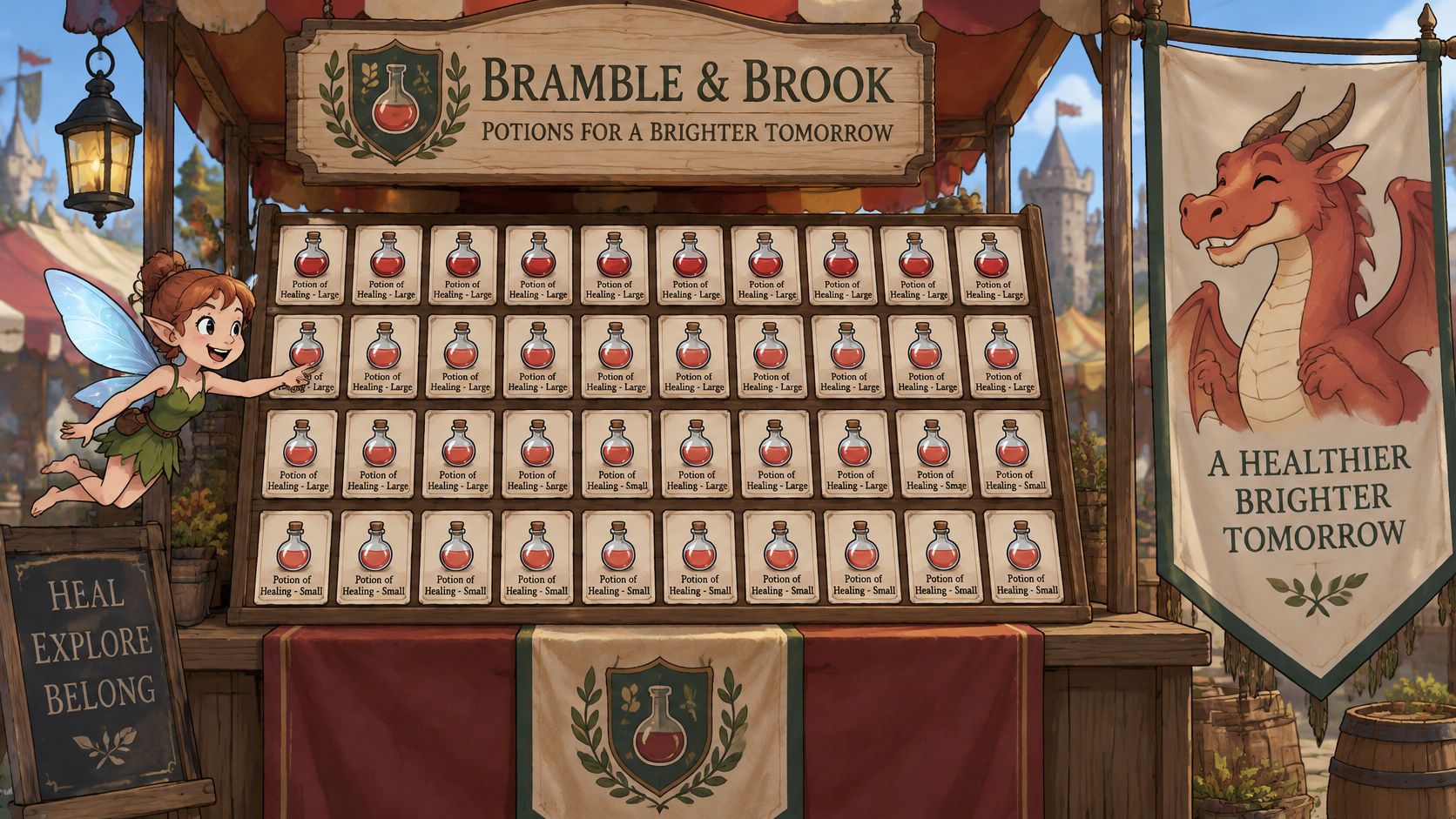
A product grid of forty near-identical cards is where good intentions collapse. Writing "product image" forty times passes every automated check and tells a shopper nothing.
Name the product and the variant a buyer compares. "Oak wand, 12 inch, dragon-scale grip" lets someone decide whether to open that card, while a SKU number just adds noise. For logos, the brand name is the baseline, and when the logo sits inside a link to the homepage, the destination matters more than the artwork: "Bramble and Brook, home" beats "logo."
Length is where writers second-guess themselves, and the WebAIM screen-reader survey settles it with 1,121 valid responses. 66% of evaluators preferred that decorative images be ignored entirely, and the vast majority of screen-reader users wanted photos identified as photos. People without disabilities were three times more likely to prefer shorter alt text than people with disabilities. Decorative art gets nothing; a meaningful photo gets a short phrase that names what it shows.
The dragon rule: a dragon in a hero banner is decorative if it only sets the mood, and informative if the page is selling a dragon-themed course. Same creature, different job.
Translations drift badly when teams translate a filename or stuff a keyword into every language. Translate the meaning and the function, and keep each image in the same role across locales. A search icon says what it does in every language, and a decorative flourish stays decorative whether the page is in English, German or Elvish.
Images carrying words need the same scrutiny. When those words already exist as real text nearby, use an empty alt value. When the words exist only as a visual effect, treat the whole image as decorative. Screenshots and dense charts get a short identifier in the attribute and their data in adjacent text, where a screen reader can reach it.
Start this week with your five most-visited pages and check the linked images first. One linked image without alt leaves an entire navigation or checkout link unnamed, and those are the links people need most.
Web Mage generates a complete page from a plain-English description, images and copy included, and every site ships with familiars that run daily checks so small fixes don't pile up. If you'd rather type "fix the alt text on the potion cards and make each one name the bottle and size" than hunt through a media library, that's the whole editing model. Visit Web Mage and describe the site you want.